

Find an Element
Find any Element, a Person, System, Service or Component of the Model, and see everything a Team owns.
Before you start
Section titled “Before you start”- You have a viewer open: the Big Bank demo ↗, or your own Workspace with
archidocs dev. See the Quick start.
1. Search for the Element
Section titled “1. Search for the Element”Press /, or select Find in the rail on the left. Type part of a name, an id, a Team, a technology or one of a Service’s URLs. Select a result to open it on the diagram.
To browse instead, use the other trees in the rail:
- Model lists every Element, by kind or by Team.
- Views lists the Generated and Saved Views. A View is a diagram drawn from a query over the Model.
To go back to where you were, use the back and forward buttons in the location bar, or its Recent menu.
2. Read its Element panel
Section titled “2. Read its Element panel”Selecting a node opens the Element panel beside the diagram:
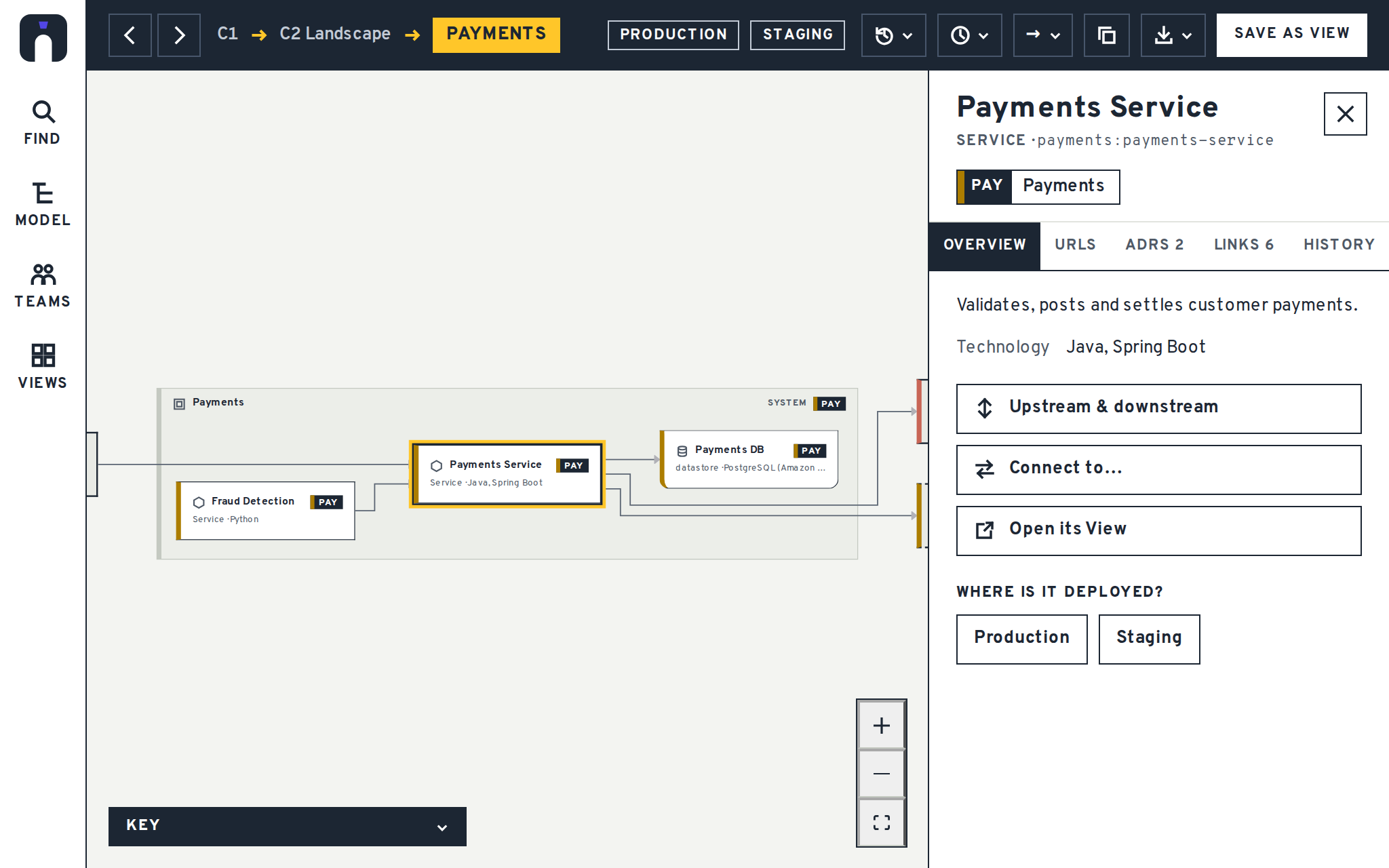
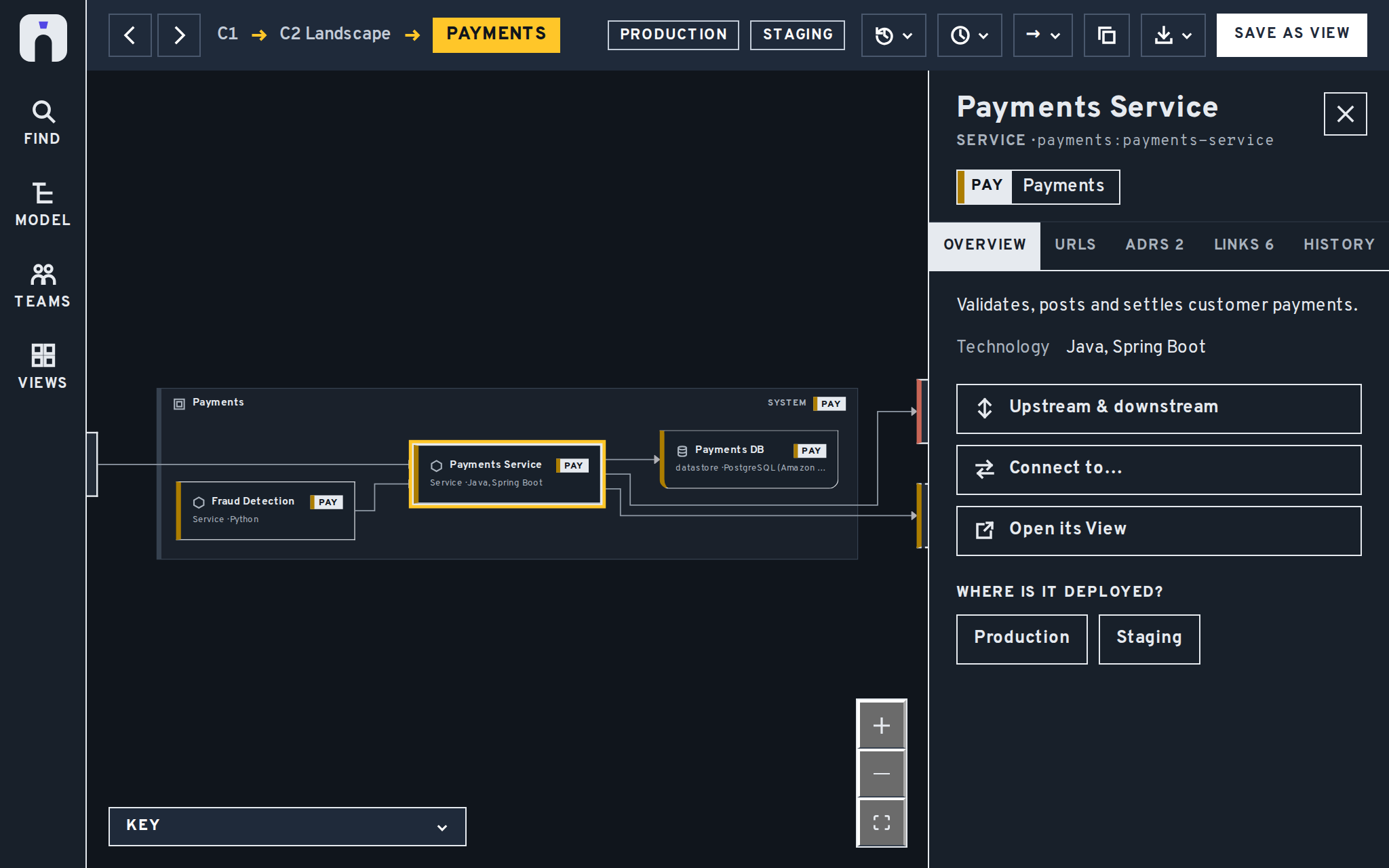
Overview shows the Owner Team, the description, the Element’s technology, repository, links, tags and metadata, and the questions you can ask about the Element. The other tabs list its URLs, its ADRs, its Relationships under Links, and the Revisions that changed it under History.
To see what is inside a System or Service without leaving the View, select the + on its box.
To read what an arrow on the diagram stands for, select the arrow. The Relationship panel opens in place of the Element panel and lists every Relationship beneath that edge, each with its description, technology, whether it is a call or an event, and the file it is declared in. An arrow between two closed boxes stands for every Relationship between what they hold, so each one shows its own two Elements. On the demo, the ATM Network’s arrow to the Mainframe ↗ opens it.
3. See what the Team owns
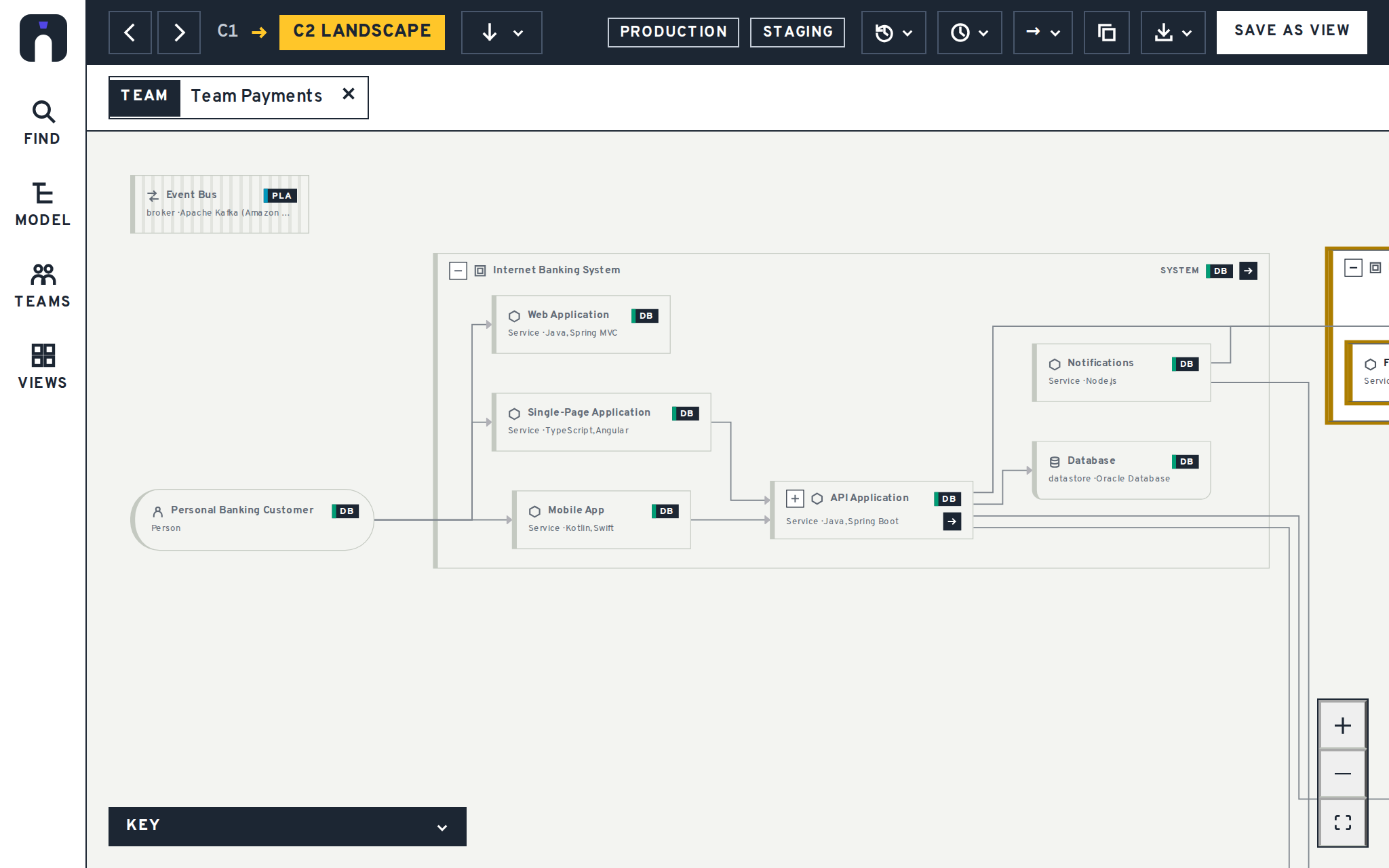
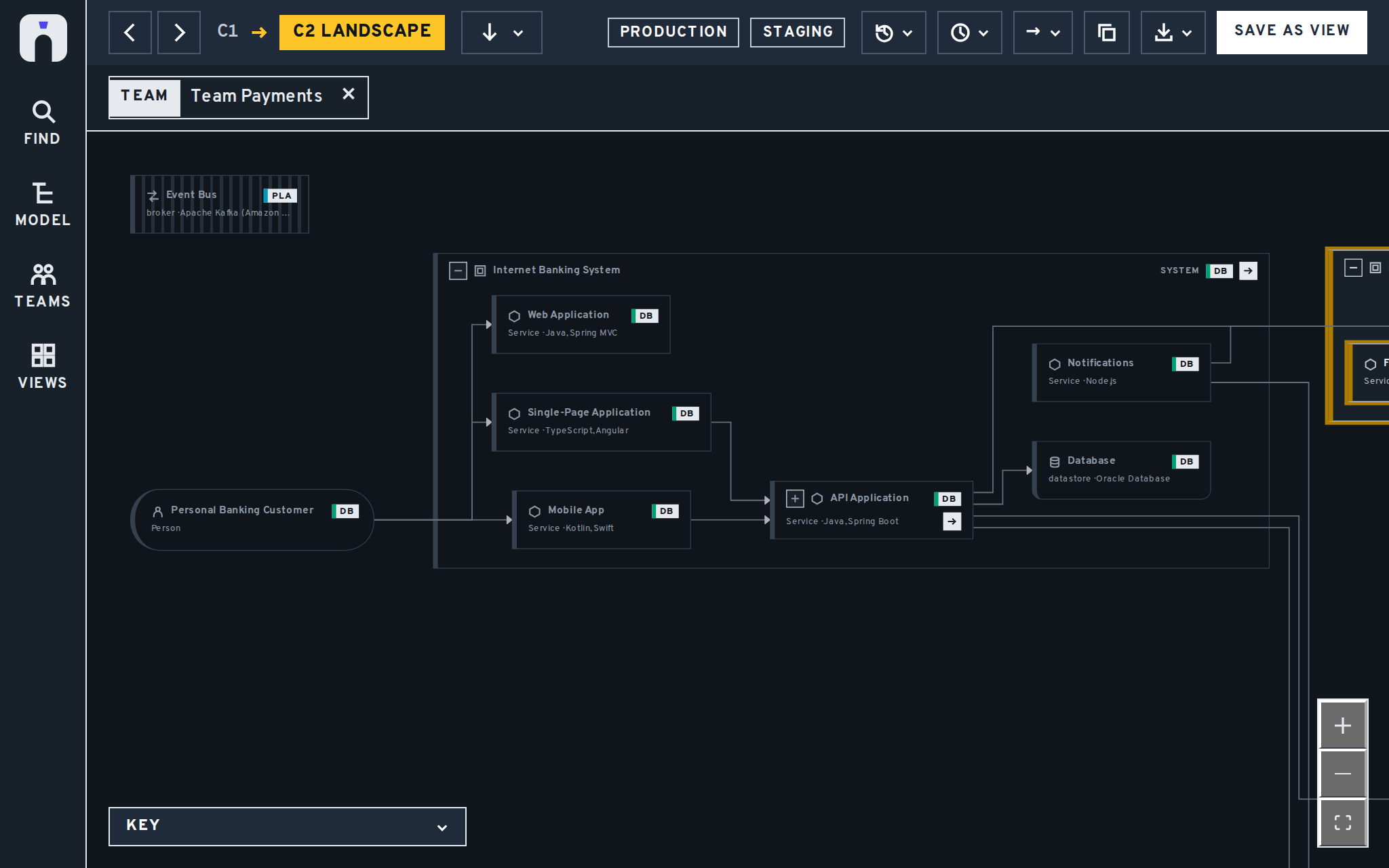
Section titled “3. See what the Team owns”Select Teams in the rail, then a Team. Or select the Owner in the Element panel. The Team Lens outlines every Element the Team owns.
A Lens highlights part of a View without changing what it shows. Clear it with the × on its chip.
Check it worked
Section titled “Check it worked”The location bar shows a Team chip with the Team’s name, and the address ends in team= and the Team’s id. On the demo, what the Payments Team owns ↗ is the Payments System and the Card Network.
With an agent
Section titled “With an agent”Ask “What does the Payments Team own?”. list_owned answers it. search_elements finds an Element by name, and get_element returns what its Element panel shows.
Related
Section titled “Related”Documents the beta branch at cd98671, ahead of the latest release, v1.4.0.